
How to add a Peppol ID in L’Invoice
There are two ways to add a Peppol ID in the system, depending on whether the client already has an existing Peppol ID or needs to register a new one.
Step 1. Navigate to Peppol Settings
- Go to Settings.
- Open the PEPPOL Tab
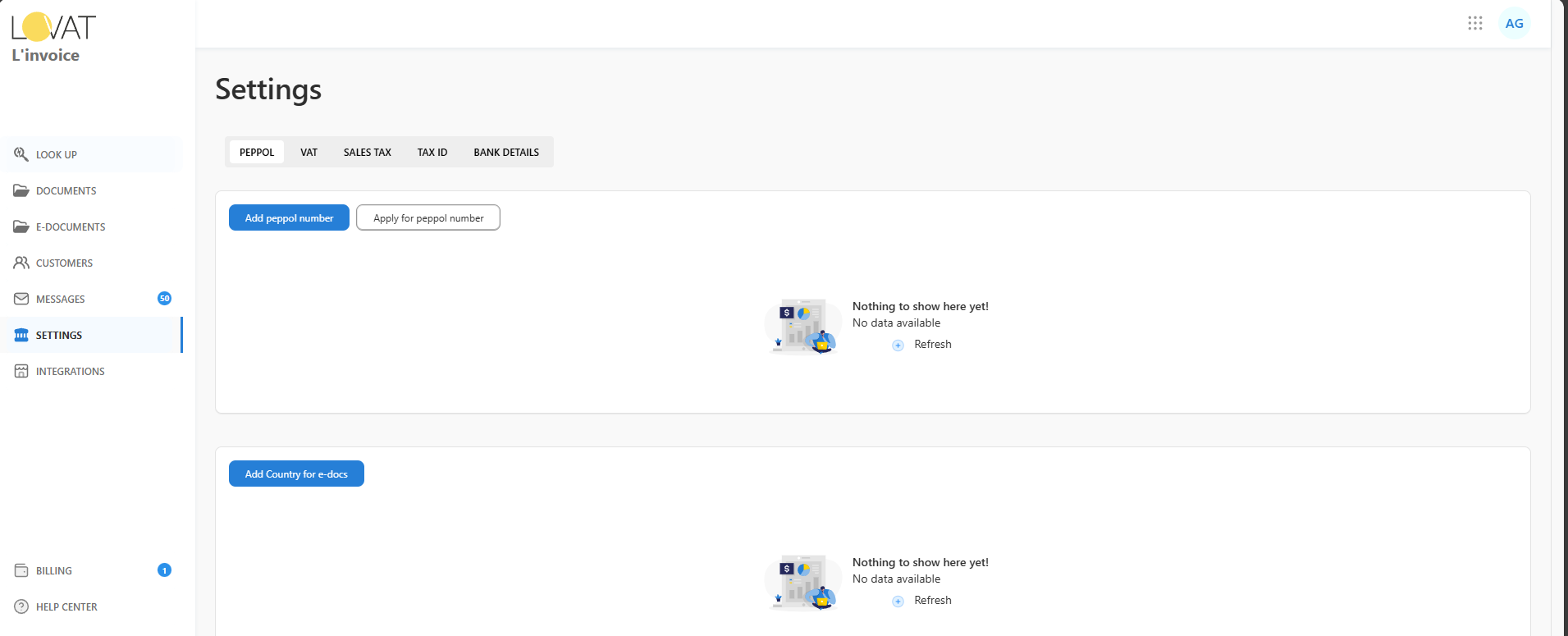
Steps:
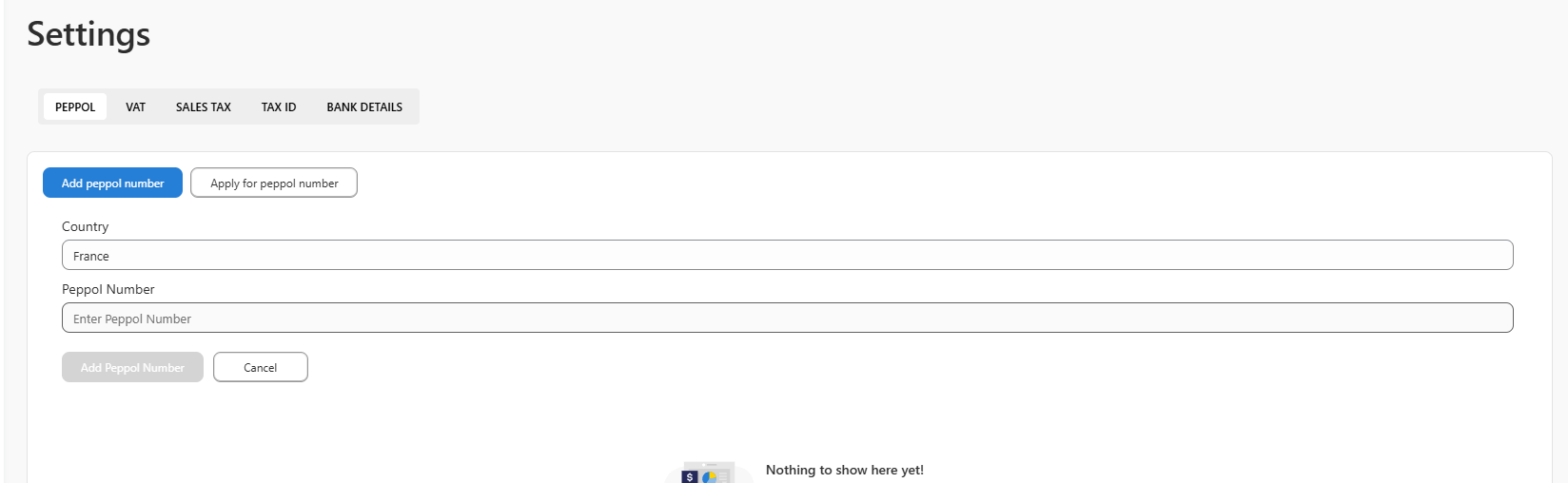
- Click Add PEPPOL Number.
- In the form:
- Select the Country.
- Enter the full Peppol Number.
Important: The Peppol Number must include a colon (:).
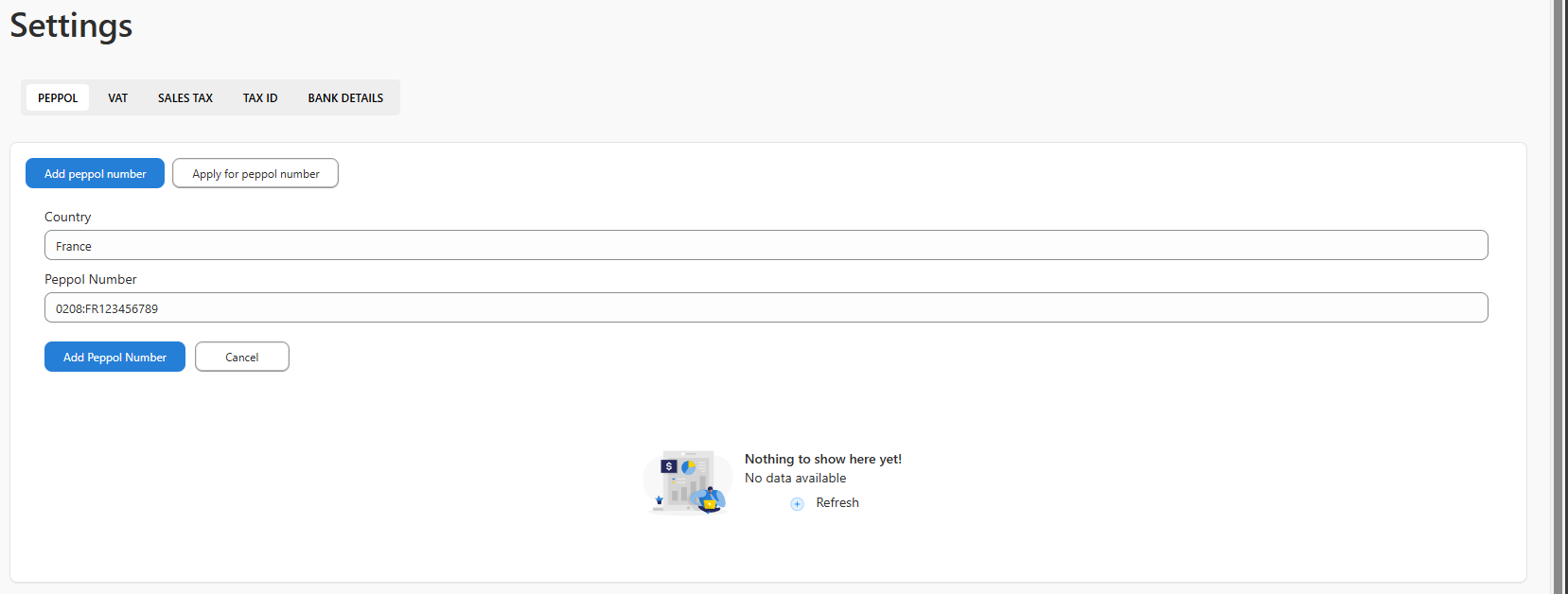
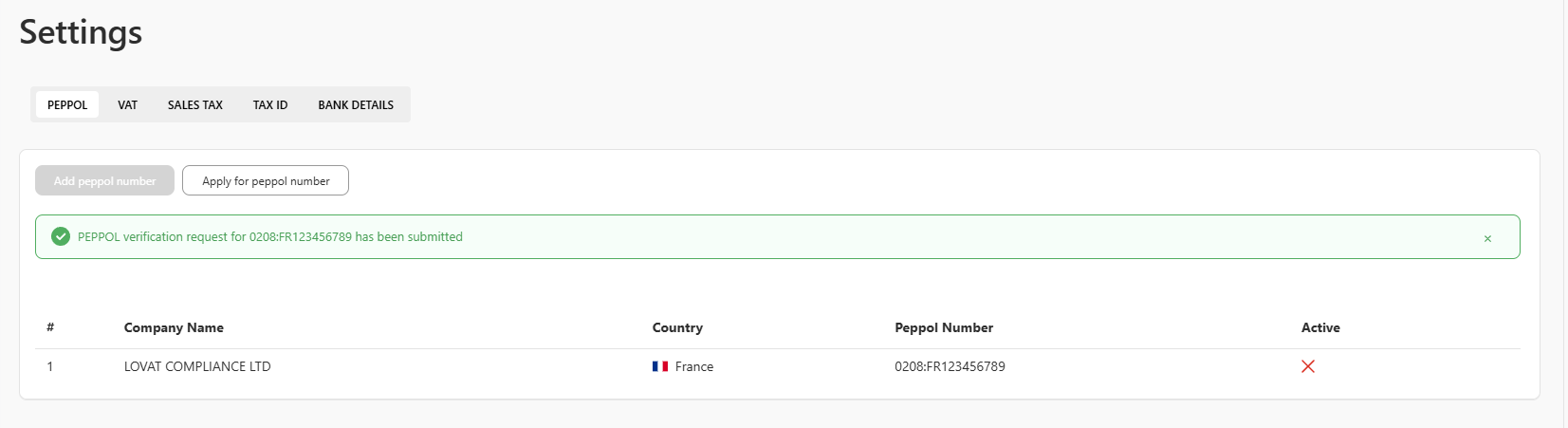
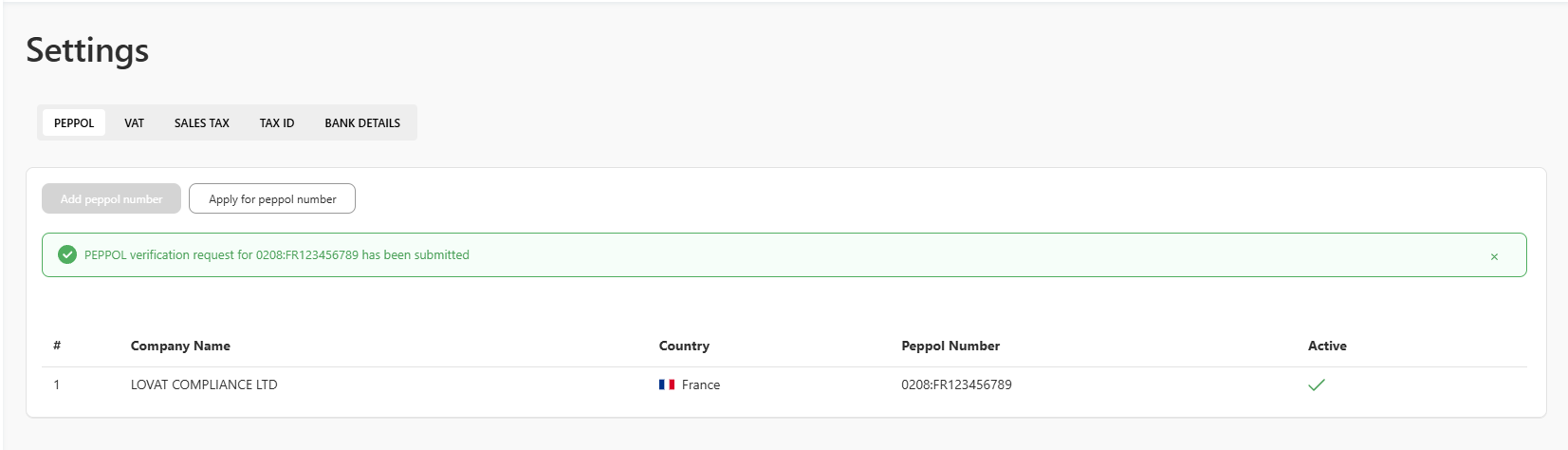
After submission:
- The data is sent to a manager for review.
- The manager must approve the Peppol ID.
- Once approved, the Active column will display the status Approved.
Option 2. Registering a New Peppol ID
Use this option if the client needs to register a new Peppol ID.
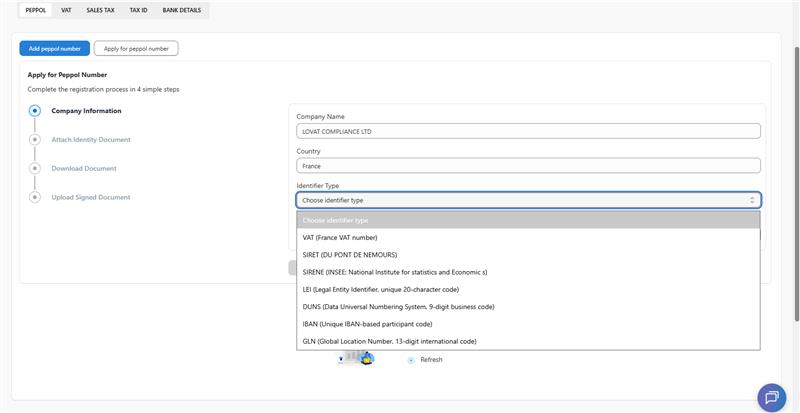
Step 1. Basic information
- In the first tab, provide:
- Company Name
- Country
- Identifier Type (several options are available)
- Identifier (e.g. VAT Number or another identifier)
- Click Next.
Identifier Types
The list of available Identifier Types depends on the selected country.
Each country may support its own national identifiers, while some identifier types are international and can be used across multiple countries.
Country-specific identifiers
Depending on the country, you may see local identifiers such as:
- VAT (e.g. France VAT Number)
- SIRET
- SIREN
- Other national business or tax identifiers
These identifiers are issued by local authorities and are commonly used for legal and tax purposes.
International identifiers
In addition, there are several international identifier types available for all countries, including:
- DUNS (Data Universal Numbering System)
- GLN (Global Location Number)
- LEI (Legal Entity Identifier)
- IBAN (Unique IBAN-based participant code)
⚠️ Note:
Although IBAN is available as an identifier type, it is not recommended for Peppol registration.
Recommendation
For Peppol ID registration, it is strongly recommended to use a VAT number whenever possible, as it is the most widely accepted and commonly used identifier for Peppol participants.
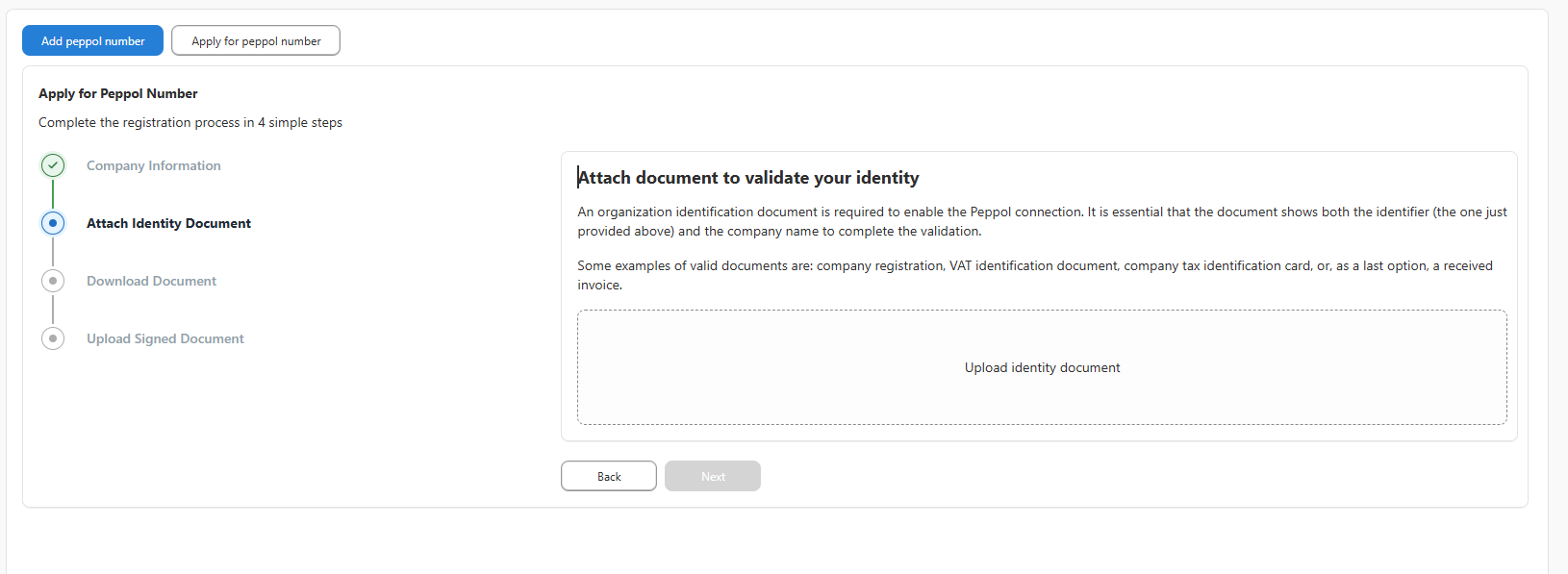
Step 2. Identity documents
- Upload documents for identity verification.
- Click Next.
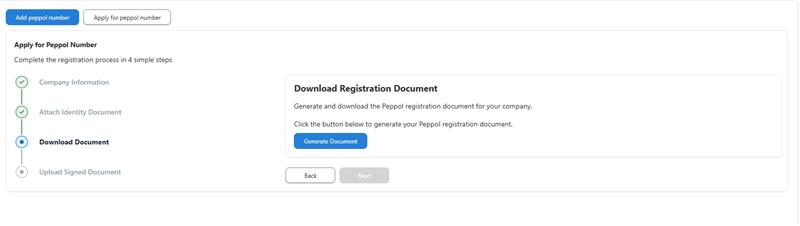
Step 3. Document signing
- Download the documents for signature.
- Click Next.
Step 4. Upload signed documents
- Upload the signed document.
- Check the box to confirm consent to data processing.
- Click Next.
After submission:
- The data is sent to a manager.
- The manager reviews the information and approves the Peppol ID.
Peppol ID Status (Active)
After a Peppol ID is submitted, it must be reviewed and approved by a manager.
Only when the Active column displays a green check mark ✅, the Peppol ID is considered:
- Verified
- Approved
- Ready for use
If the Active column does not show a green check mark (for example, shows a red cross ❌), the Peppol ID is not yet confirmed and cannot be used.
Important:
Only Peppol IDs with a green check mark in the Active column are treated as fully confirmed and ready for sending Peppol documents.

Still have questions?
Contact us support@vatcompliance.co