
How to import data from Excel
This section explains the step-by-step process of importing data from an Excel file into the system.
Step 1. Access the upload feature
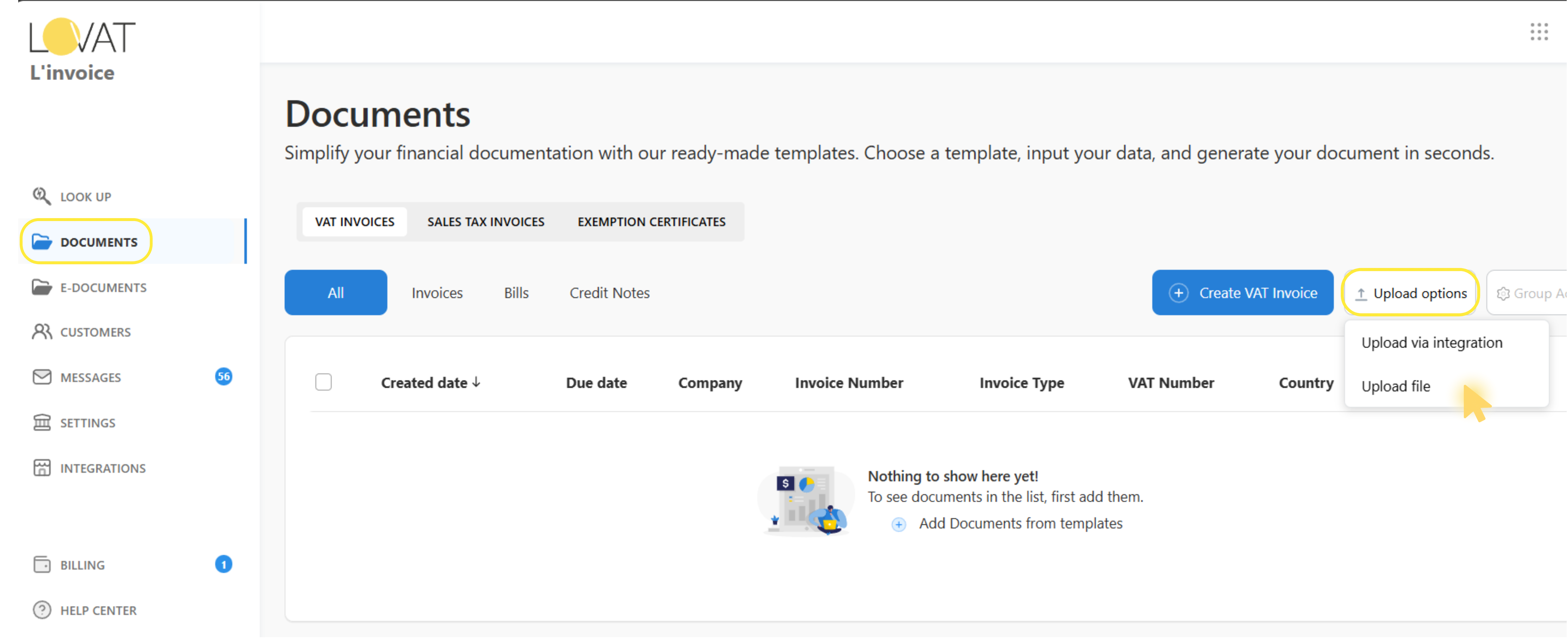
Navigate to the Documents section in the application. Click on the “Upload options” button and select “Upload filel” from the dropdown menu.
Step 2. Select and upload your Excel file
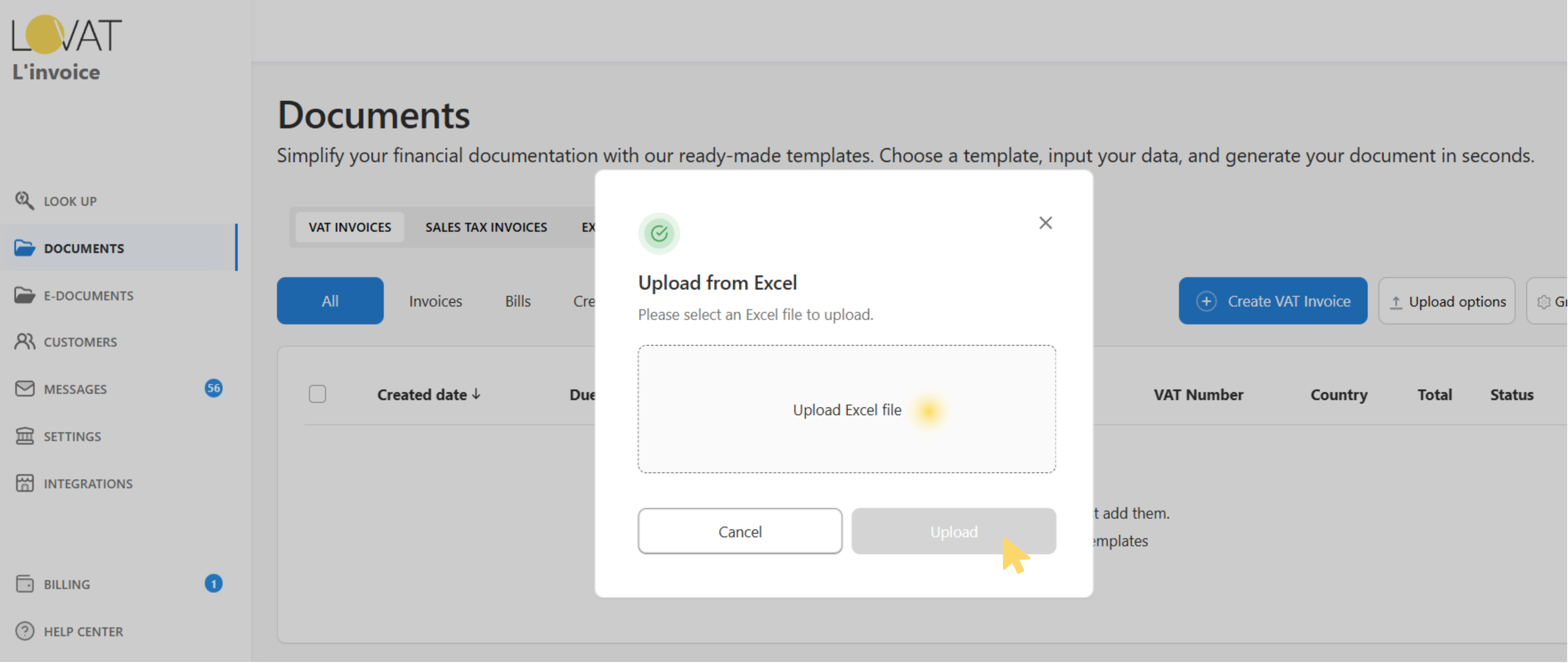
In the “Upload from Excel” dialog that appears, click on the upload area or use the file browser to select your Excel file (.xlsx or .xls format). Once selected, click the “Upload” button to proceed.
Download Excel templates
Before creating your Excel file, you can download either a filled example file to see the format, or an empty template to fill in with your data.
Note: The example file contains sample data to help you understand the required format. The empty template includes only the column headers for you to fill in with your own data.
Introduction: This guide describes the structure of the Excel file used to import customers, invoices, and bank details into the system. The file must contain from one to three sheets: Customers, Invoices, and Banks.
1. File structure
The Excel file must be in .xlsx or .xls format and may include the following sheets:
- Customers (or a sheet with a name containing “customer”) – customer information
- Invoices (or a sheet with a name containing “invoice”) – invoice information
- Banks (or a sheet with a name containing “bank”) – bank account details
2. Customers sheet
This sheet contains customer information. Each row (starting from the second) represents one customer.
| Field | Required | Data Type | Max Length | Description |
| Customer ID | Required | Text/Number | – | Unique customer identifier in the Excel file. Used to link invoices. |
| Name | Required | Text | 255 characters | Customer company name. Must be unique for each customer. |
| Required | 50 characters | Email for sending invoices. Must be in the format: user@example.com | ||
| Contact person | Required | Text | 75 characters | Name of the contact person |
| Peppol ID | Optional | Text | 25 characters | Peppol identifier for electronic document exchange. Required only when the sending method is PINT or BIS3 |
| Tax number | Required | Text | 25 characters | Customer’s tax identification number (VAT number) |
| Country | Required | Text | – | Customer’s country. You may specify a country code (e.g. “DE”, “US”), ISO code (e.g. “DEU”, “USA”), or full country name (e.g. “Germany”, “United States”) |
| City | Required | Text | 30 characters | City |
| State | Optional | Text | 30 characters | State/Province/Region |
| Address line 1 | Required | Text | 75 characters | First line of the address (street, house number) |
| Address line 2 | Optional | Text | 40 characters | Second line of the address (additional information) |
| Postal code | Required | Text | 12 characters | Postal code |
| Language | Required | Text | – | Language for PDF documents. Allowed values: EN, FR, DE, IT, ES, ZH, PL, LV, ET.You may specify a code or a full name (e.g. “English” will be converted to “EN”) |
| Sending method | Required | Text | – | Invoice sending method. Allowed values: BIS3, PINT, Email, Croatia (Fiskalizacija 2.0). Default: BIS3 |
3. Invoices sheet
This sheet contains information about invoices. Each invoice consists of one header row (Header) and one or more item rows (Item).
Important: Each invoice must start with a row of type “Header”, followed by rows of type “Item” for each product/service. The next invoice begins with a new “Header” row.
3.1. Header row fields (invoice header)
| Field | Required | Data type | Description |
| Row type | Required | Text | Must be Header (case-insensitive) |
| Invoice number | Required | Text | Invoice number. Must be unique for the company |
| Customer ID | Required | Text/Number | Customer ID from the Customers sheet. Must exist in the system |
| Invoice date | Required | Date | Invoice creation date. Format: DD/MM/YYYY |
| Due date | Optional | Date | Invoice due date. Format: DD/MM/YYYY |
| Currency | Required | Text | Currency code (e.g., EUR, USD, GBP). Default: EUR |
| Order reference | Optional | Text | Order number/reference |
| Status | Required | Text | Invoice status. Allowed values: new, pending, sent, paid |
| Bank ID | Optional | Text/Number | Bank ID from the Banks sheet. If not specified, default bank data from settings will be used (local or global depending on whether the company’s and customer’s countries match) |
| Seller VAT number | Optional | Text | Seller’s VAT number |
| Seller sales tax number | Optional | Text | Seller’s sales tax number |
| Seller tax ID | Optional | Text | Seller’s tax identification number |
| Total | Required | Number | Total invoice amount (including taxes) |
| Total excluding tax | Required | Number | Amount excluding taxes |
| Total tax amount | Required | Number | Total tax amount |
| Total discount amount | Required | Number | Total discount amount |
| Note | Optional | Text | Invoice note |
3.2. Item row fields (product/service)
| Field | Required | Data type | Description |
| Row type | Required | Text | Must be Item |
| Item description | Required | Text | Description of the product or service. Rows without a description will be skipped |
| SKU | Optional | Text | Product SKU |
| Quantity | Required | Number | Quantity |
| Unit price | Required | Number | Price per unit |
| Discount | Optional | Number | Discount amount |
| Discount type | Optional | Text | Discount type: amount (fixed amount) or percentage (%) |
| Tax rate | Optional | Number | Tax percentage (e.g., 20 for 20%) |
| Tax type | Optional | Text | Tax type. Allowed values: SalesTax, VAT, GST, NoTax. |
4. Banks sheet
This sheet contains information about bank details. Each row (starting from the second) represents one bank account.
| Field | Required | Data type | Max length | Description |
| Bank ID | Required | Text/Number | – | Unique bank identifier in the Excel file. Used to link with invoices |
| Name of the bank | Required | Text | 60 characters | Name of the bank |
| Bank type | Required | Text | – | Bank type: local or global |
| Currency | Required | Text | 3 characters | Account currency (e.g., EUR, USD) |
| Account holder | Required | Text | – | Account holder name |
| Account Number | Required | Text | – | Account number (IBAN or other format) |
| SWIFT/BIC | Optional | Text | – | SWIFT/BIC code of the bank |
| IBAN | Optional | Text | – | IBAN |
| Routing number | Optional | Text | – | Routing number of the bank |
| Sort code | Optional | Text | – | Sort code of the bank |
Note on bank data: Bank data is optional. If you have filled in default bank data in the system settings, they will be automatically pulled when creating invoices. The rule for selecting bank data is as follows:
- If the company’s country matches the customer’s country, then local default bank data will be used.
- If the countries differ, then global default bank data will be used.
Example: If the company’s country is Canada and the customer’s country is Canada, then local default bank data will be pulled. If the countries differ (for example, the company is in Canada and the customer is in the USA), then global default bank data will be used.
5. Processing order
The system processes the data in the following order:
- Customers – customers are created/updated first
- Banks – then bank details are created/updated
- Invoices – invoices are created/updated last (they reference Customers and Banks)
Important: Make sure that the Customer ID and Bank ID in the Invoices sheet match the IDs from the Customers and Banks sheets respectively. If the customer or bank is not found, the invoice will not be created.
Frequently Asked Questions (FAQ)
Can I import only invoices without customers?
No, customers must be imported first because invoices reference them through Customer ID.
What happens if I specify an incorrect Customer ID in an invoice?
The invoice will not be created, and an error message will appear in the processing results indicating the issue.
How do I add multiple items to one invoice?
After the Header row, add multiple Item rows. Each Item row represents one product or service.
What do the Discount types "amount" and "percentage" mean?
- amount – a fixed discount amount (e.g., 50.00 EUR)
- percentage – a percentage discount (e.g., 10 means 10% of the amount)
Still have questions?
Contact us support@vatcompliance.co