How to Configure Country Specifics in L’Invoice
The Country Specifics module allows you to configure country-level settings required for compliance and country-specific invoice flows.
Here you can add supported countries, configure Language for PDFs, and (for specific countries) manage Product codes.
Why use Country Specifics?
By configuring country specifics, you ensure that invoice generation and document output (PDF language, country-specific product code requirements) are aligned with local rules and supported e-invoicing formats.
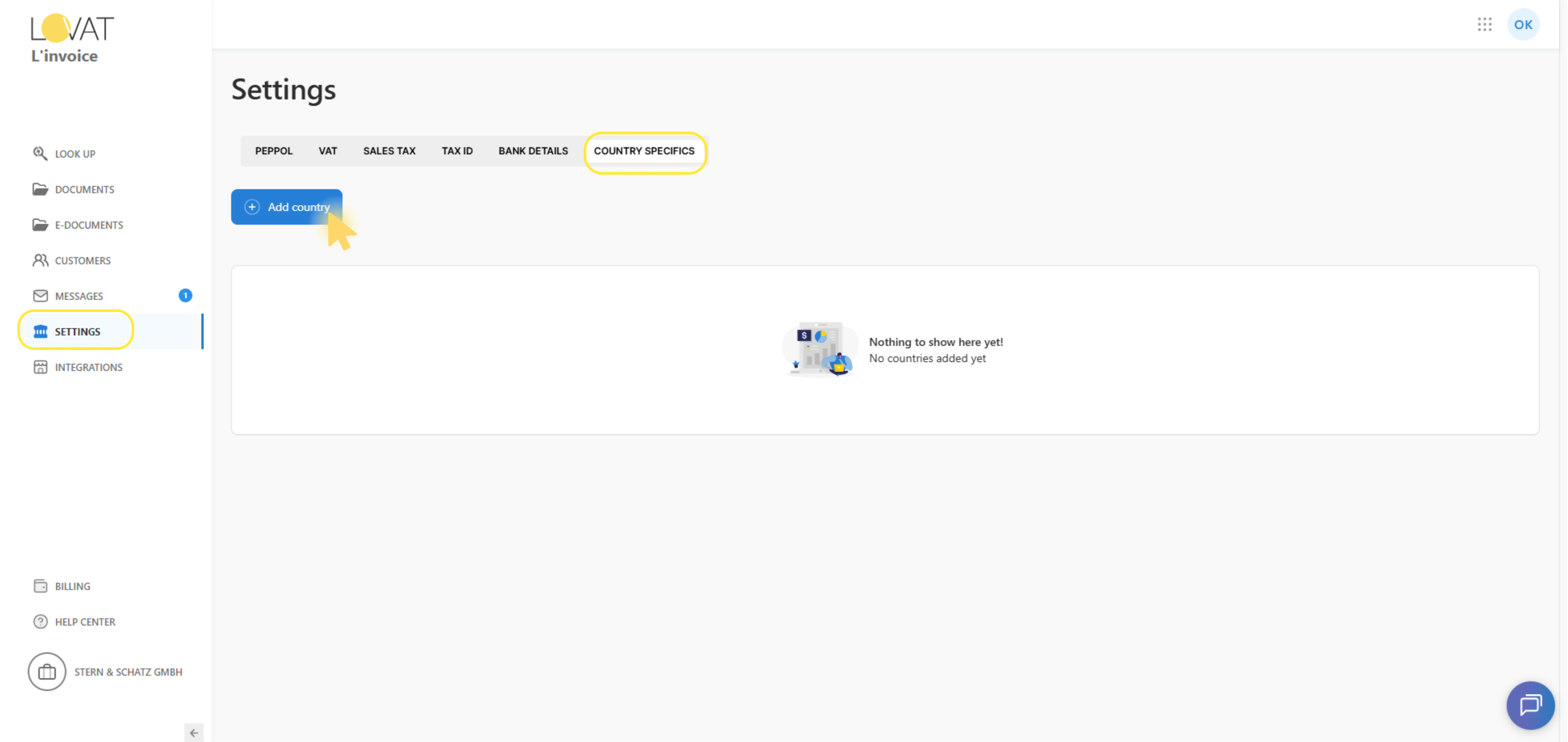
1. Open Country Specifics
To start configuring country settings:
- Open Settings in the left navigation.
- Go to Country specifics.
- You will see the list of added countries and available actions.
On this screen, you can:
- add a new country
- set/edit “Language for PDFs”
- manage additional country features (e.g., products for Croatia)
- delete an existing country
2. Add a country
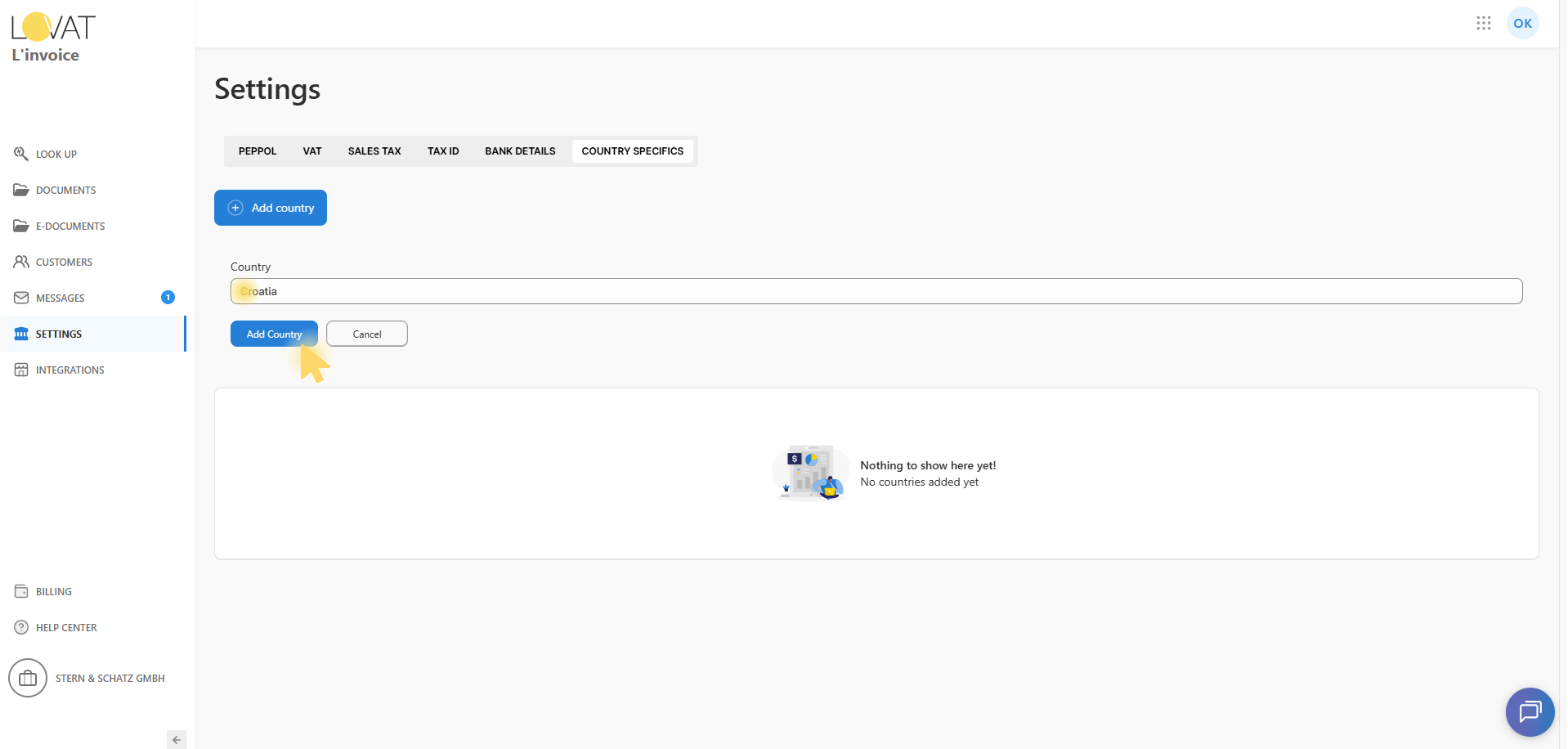
Click Add country to open the country selector.
Required field
- Country — you must select a country from the dropdown to proceed.
Actions
- Add Country — saves the country and refreshes the table.
- Cancel — closes the form without changes.
After a country is added, it becomes available in the country list and can be configured further.
3. Country list overview
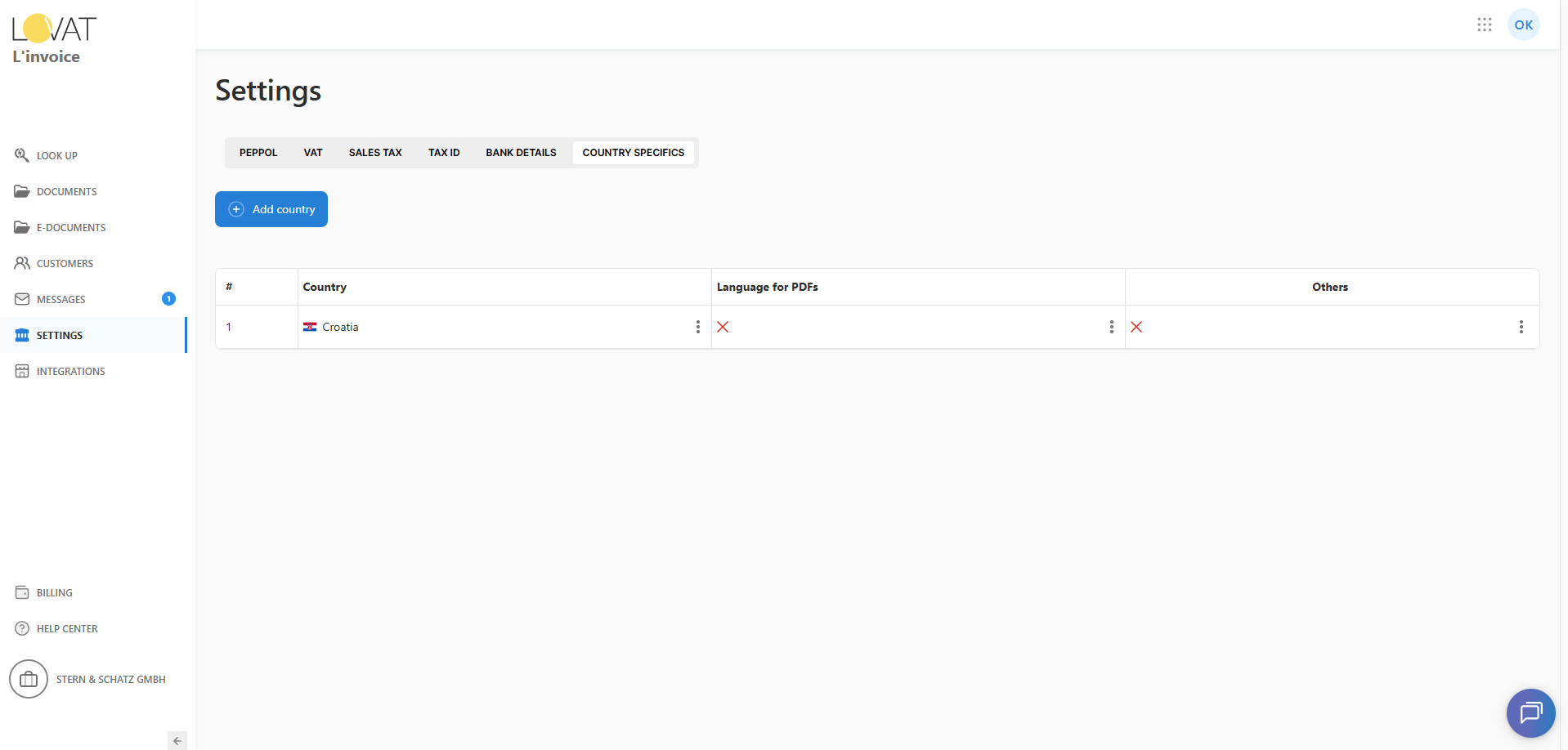
The table contains the following columns:
- # — row index
- Country — country name with a flag and actions menu
- Language for PDFs — shows whether a language is set (checkmark/cross) and actions menu
- Others — optional country-specific features (available only for some countries)
Each row includes an actions menu (“…”) to configure or delete items.
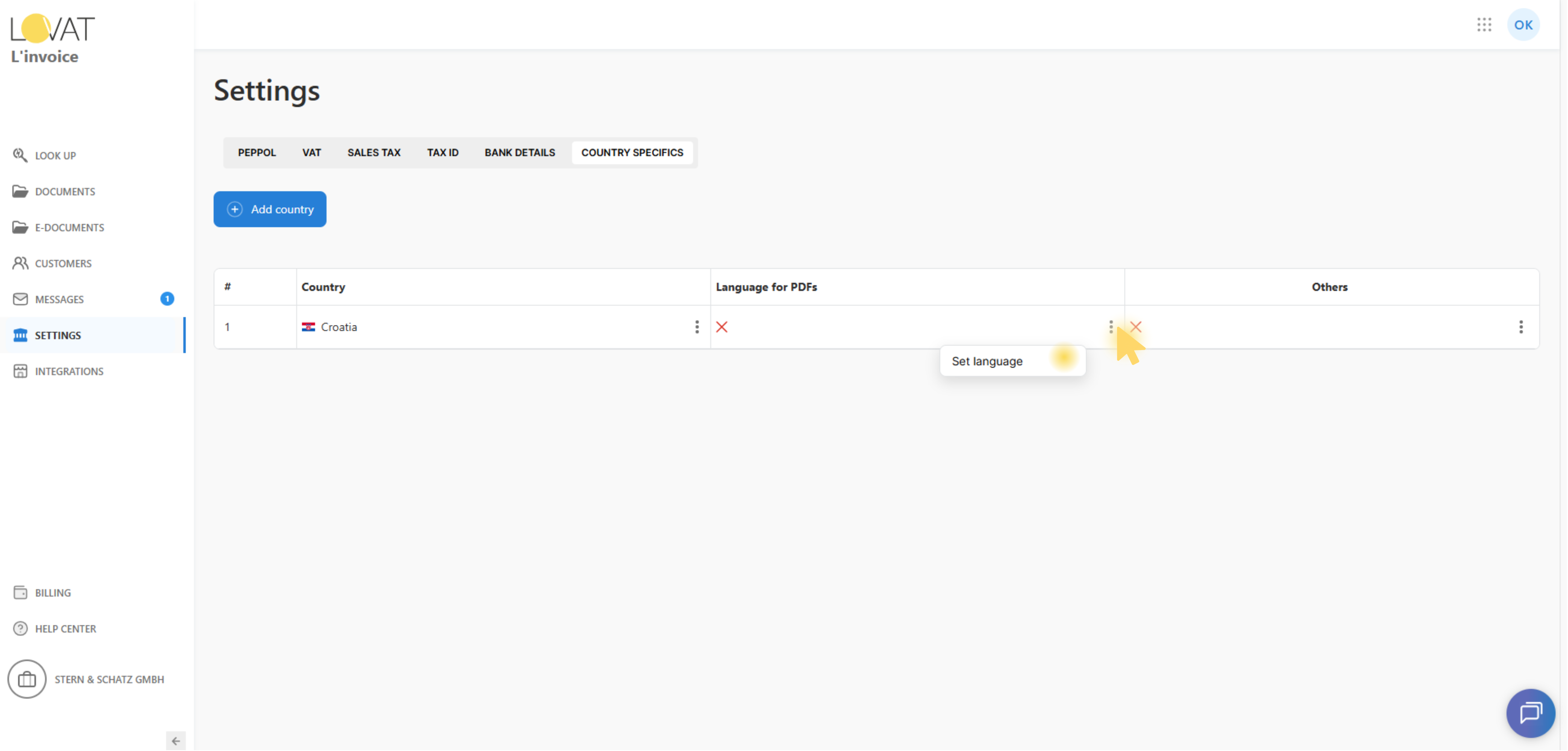
4. Set “Language for PDFs”
In the Language for PDFs column, click the “…” menu and choose:
- Set language (if not set yet), or
- Edit language (if a language already exists)
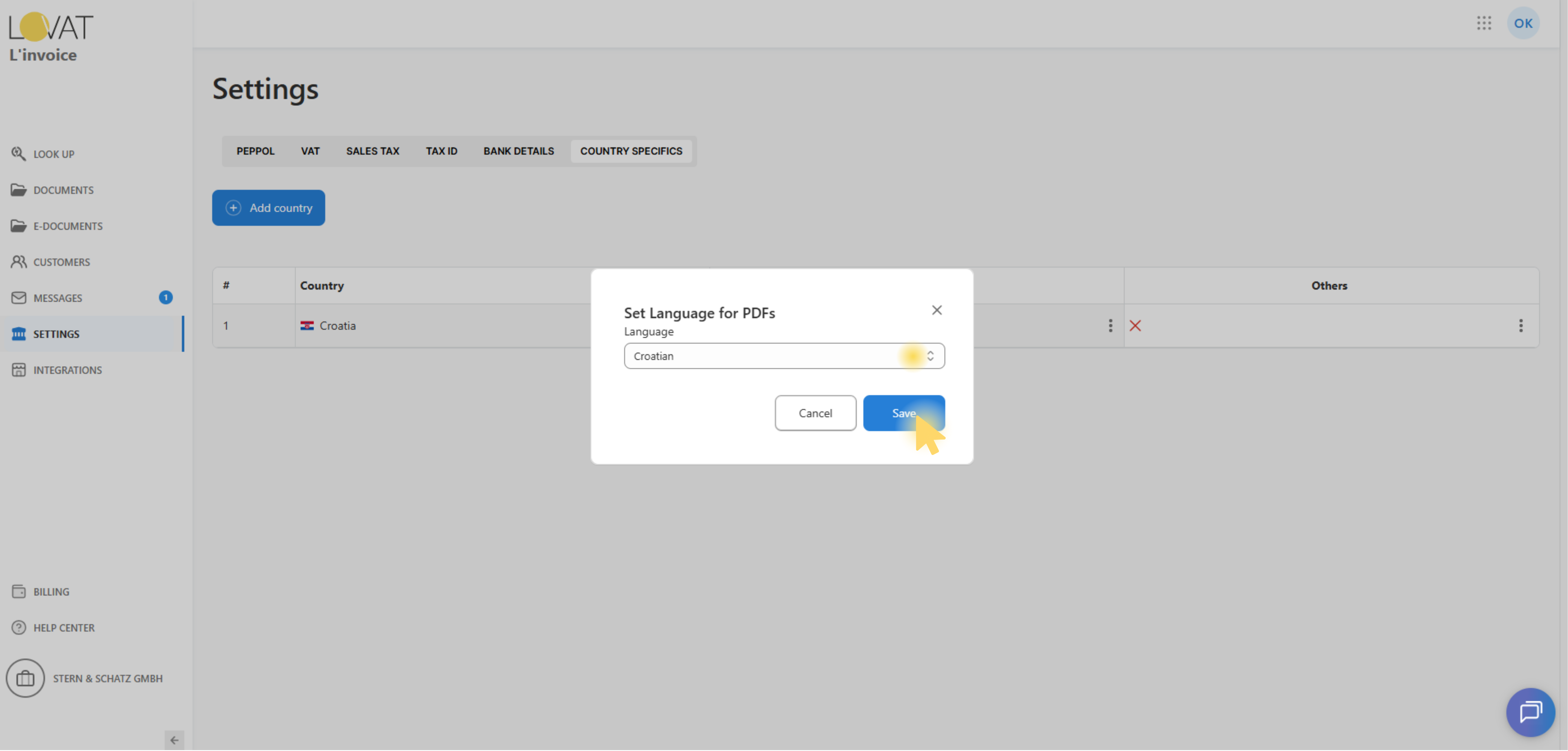
Required field
- Language — select a language from the dropdown.
Actions
- Cancel — closes the modal without changes.
- Save — saves the selected language and refreshes the list.
Once saved, the column will display a checkmark and the selected language name.
5. Manage country-specific features
Some countries support additional, country-specific configuration options. These options are available in the Others column of the Country specifics table.
Example: Croatia
If a country supports country-specific product settings, the Others column displays an action menu (three-dot icon) with the option Manage products.
A cross icon in this column indicates that product configuration has not been set up yet for the selected country.
Selecting Manage products opens the Product codes page, where you can manage a country-specific list of product lines and classification codes.
On the Product codes page, you can:
- maintain product-specific data for the selected country;
- add new product lines directly to the table;
- edit or delete existing product entries using the actions menu;
- assign and manage country-specific classification codes required for local compliance.
These settings allow you to tailor product data and classification rules to the regulatory requirements of each supported country.
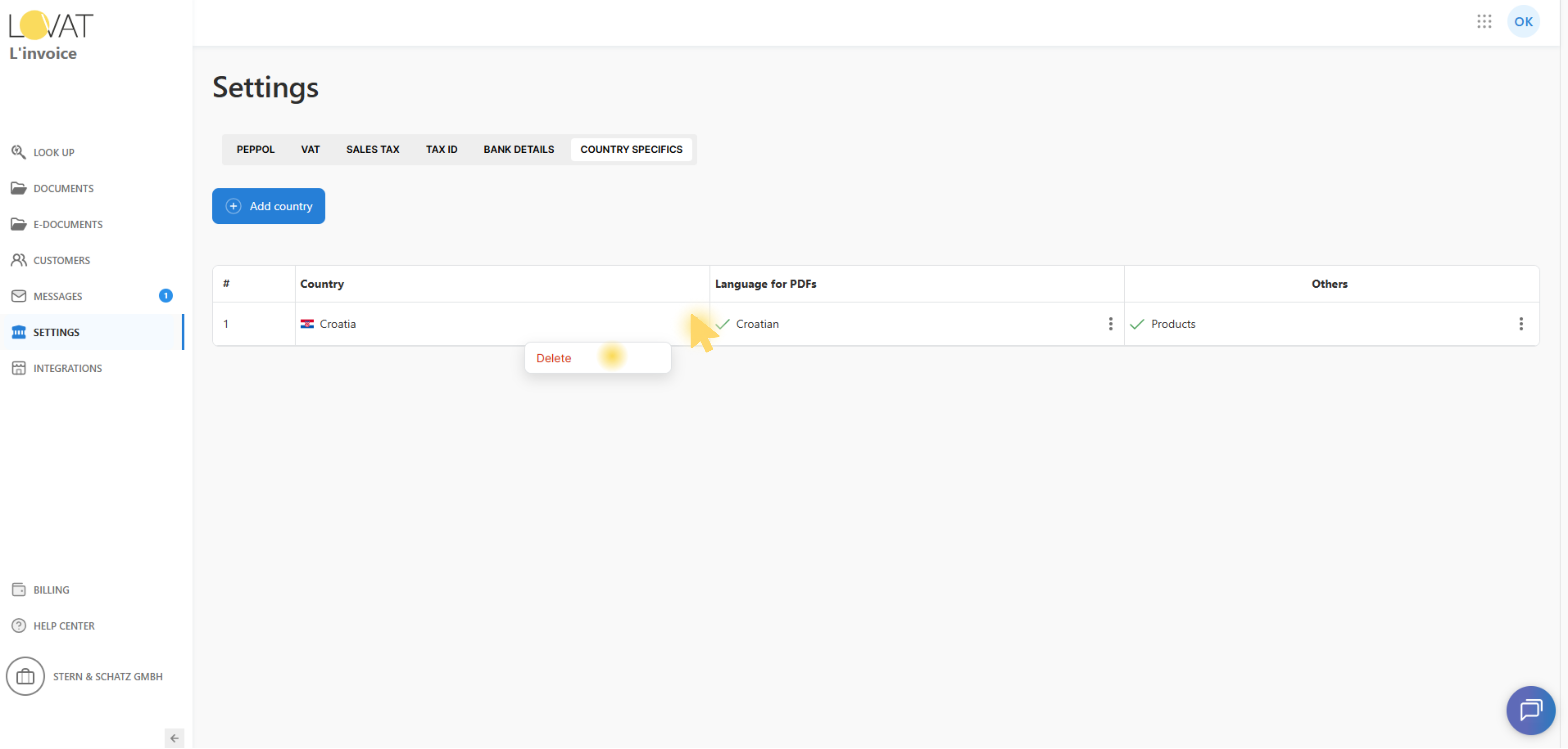
6. Delete a country
In the Country column, click the “…” menu and choose Delete.
A confirmation modal will appear:
- Cancel — closes the modal without changes.
- Delete — removes the country from the list.
Deleting a country permanently removes it from Country Specifics.