
How to Add a VAT Number in Lovat Invoice
In Lovat Invoice, there are two ways to work with a VAT number:
- Order a VAT — if you don’t have a tax number in a country and want to order/register one via Lovat.
- Add a VAT — if you already have a tax number and want to add it to the platform.
Where to Find VAT Settings
- Open Settings in the left-side menu
- Go to the VAT tab
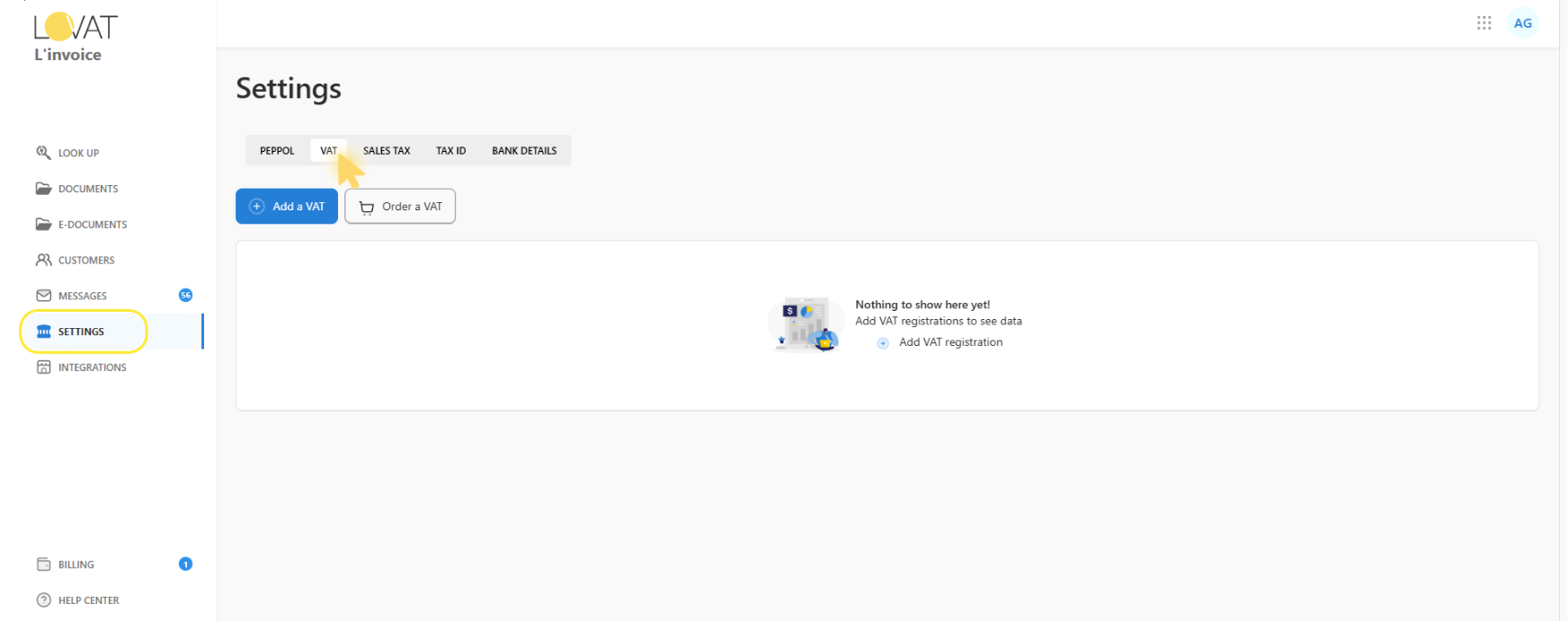
If you haven’t added any VAT registrations yet, you’ll see an empty state (“Nothing to show here yet…”).
1. Add a VAT (if you already have a VAT number)
Click Add a VAT — the VAT registration form will open.
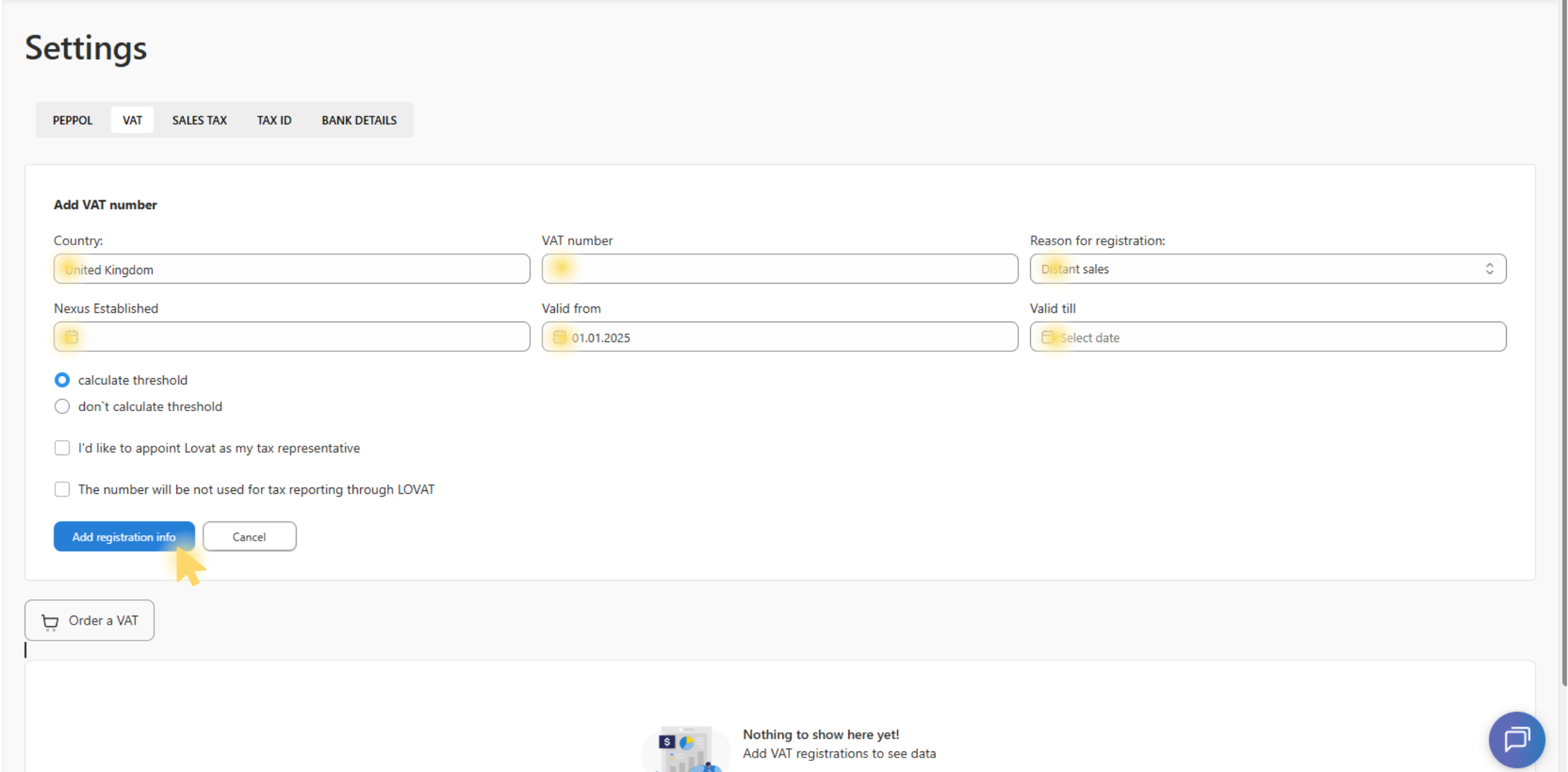
What to Fill In
- Country — the country where you are VAT-registered.
- VAT number — your VAT number (as issued by the tax authority).
- Reason for registration — the reason for registration (e.g., Distant sales, etc.).
- Nexus Established — the date when the tax nexus/obligation was established (if applicable).
- Valid from — the date from which the VAT number is valid
- Valid till — the end date (if applicable). If the VAT number is open-ended, leave it blank (if the system allows).
Additional options:
-
Calculate threshold / don’t calculate threshold
Choose whether the platform should track the threshold calculation (if available for the selected country). -
I’d like to appoint Lovat as my tax representative
Check this if you want to appoint Lovat as your tax representative (where applicable). -
The number will be not used for tax reporting through LOVAT
Check this if you want the number stored/used for documents, but not used for tax reporting via Lovat.
To save, you need to click “Add registration info”. To exit without saving, click “Cancel”.
What happens after you add a VAT number
After saving, the VAT number will appear in the VAT registrations list.
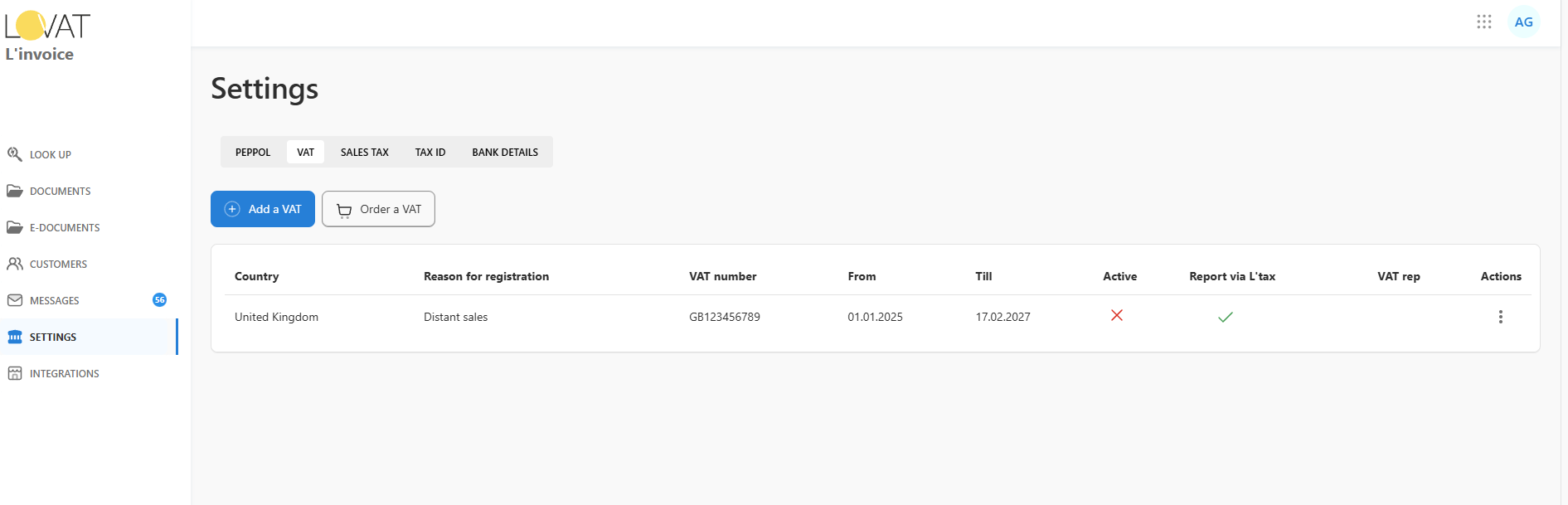
The table shows:
- Country
- Reason for registration
- VAT number
- From / Till — validity period
- Active — whether the VAT number is active
- Report via L’tax — whether reporting is done via L’tax (if enabled)
- VAT rep — tax representative (if applicable)
- Actions — action menu (three dots)
What “Active” means
The Active column indicates whether the VAT number is currently active in the system (for example, used as the current/valid registration depending on product logic and settings).
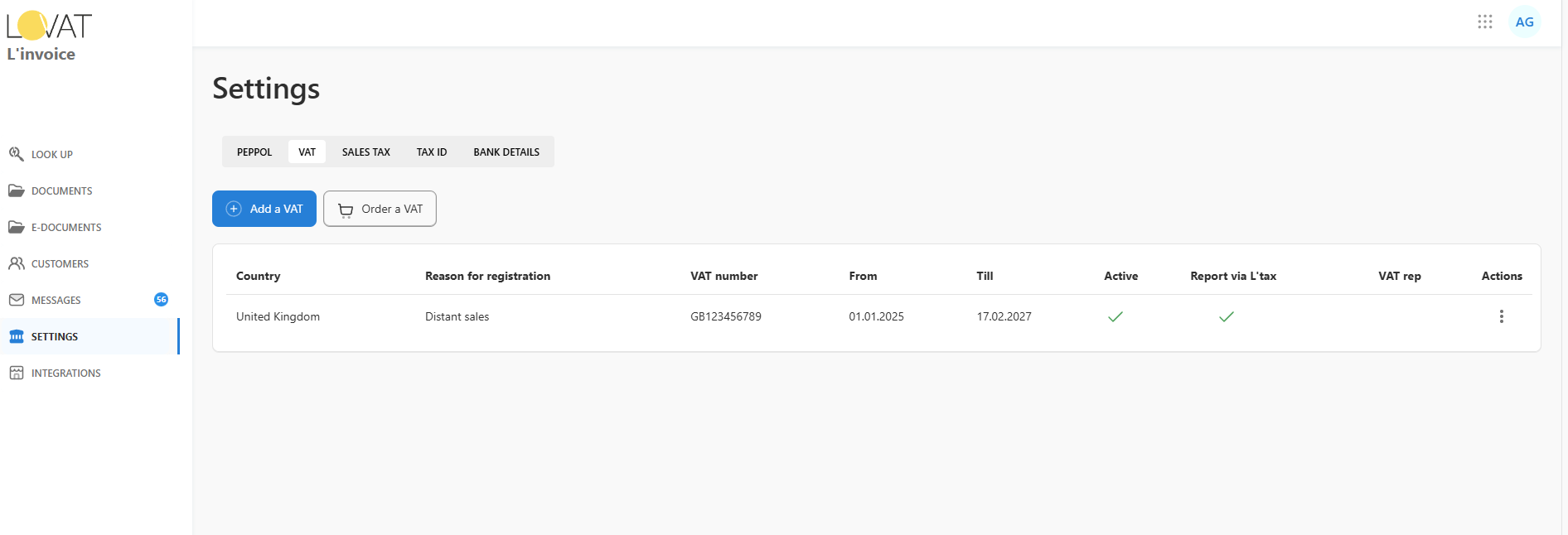
If you have multiple VAT numbers for the same country or different validity periods, make sure the correct one is marked as active.
2. Order a VAT (if you don’t have a VAT number)
If you don’t have a VAT number in a country yet, click Order a VAT. This option is used to order/register a VAT number via Lovat.
Then follow the registration ordering flow (it may vary depending on the country and requirements).
Still have questions?
Contact us support@vatcompliance.co